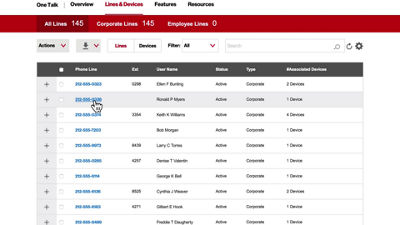
This video will show you how to set forwarding preferences for incoming calls in One Talk.
There are four call forwarding options available. To access them, either click Lines and Devices, then select the line you'd like to manage, or go to User Features and select Call Forwarding to quickly manage multiple lines.
More information about group forwarding can be found in the video Forwarding Multiple Lines to a Single Number.
Call Forwarding Selective forwards calls based on pre-defined criteria.
Call Forwarding Always forwards all calls to another destination.
Call Forwarding Busy forwards calls when your line is busy.
And Call Forwarding No Answer reroutes a call if you don't answer after five rings.
Call Forwarding features can be turned on and off as needed. Turning on the feature will give you the option to forward to your voicemail or to another phone number.
Click Submit to save your settings.
If you need to adjust your forwarding settings, click on the gear icon to reopen the dialog box.
You can also go to the line details page to manage all forwarding options for a single line.
If you need additional assistance please refer to the One Talk Resources Support page.