How to copy content from your old iPhone phone to your new Android phone
Congratulations on your new phone!
Verizon Cloud's content transfer feature makes moving to your new phone super-simple by transferring all your important content - like contacts, photos, and videos, in a few easy steps.
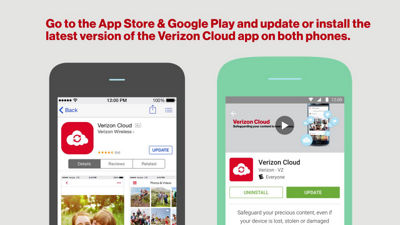
First, go to the App StoreSM & Google Play™ and update or install the latest version of the Verizon Cloud app on your phones.
Next, open the Verizon Cloud app, select "Get Started," and then "Start Transfer" on both of your phones.
Or, if you're already registered for Verizon Cloud, when you open the app on your old phone, you'll tap the "Menu" icon in the top left corner. Then select "Tools" and then "Content Transfer."
On your old phone select "Copy content FROM this phone" and on your new phone select "Copy content TO this phone."
Both of your phones need to be connected to the same Wi-Fi Network. On your iPhone, go to the phone’s main Settings and connect to the desired network, then return to Cloud. On your new Android, connect to the same network and then select "Next."
Once connected, a scanner will open on your new phone - use it to capture the QR Code on your old phone.
Once your phones are paired, select the content you wish to transfer.
While your content transfers, you can check the progress on either phone. Remember to keep these screens open to ensure a smooth transfer.
When your transfer is complete, select "Done" on your old phone.
Now that your important content is on your new phone, keep it all safe by backing up to Verizon Cloud - you'll then have access to your contacts, photos, videos and more across your Cloud devices and have the peace of mind knowing your memories are protected. Simply select "Launch Verizon Cloud" and follow the on-screen prompts.
It's now time for you to create new memories with your phone! Thank you for choosing Verizon Wireless!